
Identify whether the device is a separate Roku player or a Roku TV before following a restart guide. Use Roku's system restart procedure for that model; simply turning the display off may leave the player running.
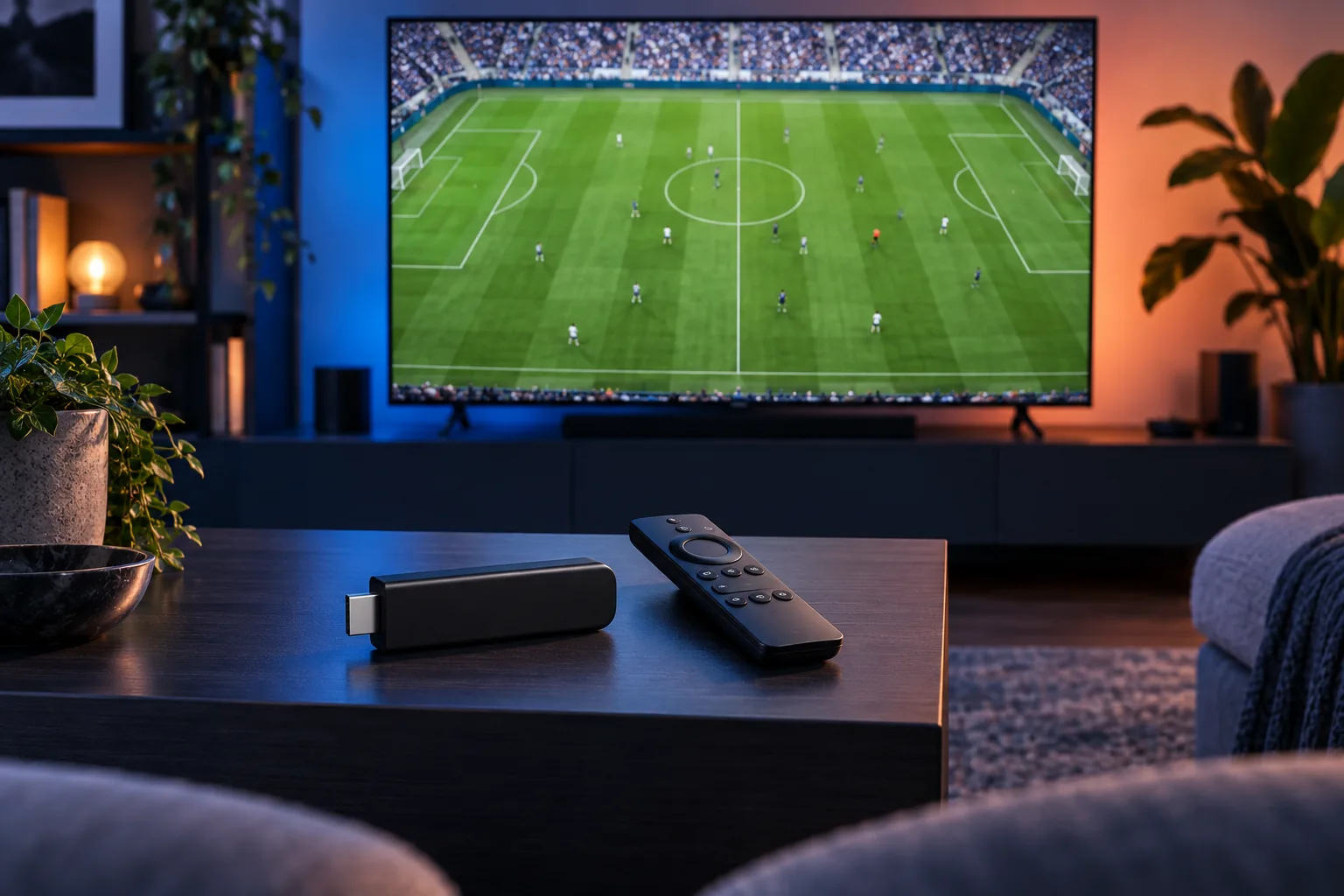
Why this happens
A television power button and the Roku operating system are not always the same power control. Restarting the correct component matters when an app freezes.
Work through the steps
- Confirm whether the Roku is a TV or an HDMI player.
- Stop playback if the interface responds.
- Use Roku's documented System Restart option for that device.
- Wait for startup, then reopen the affected app.
What to avoid
Do not choose Factory Reset as a substitute for Restart. Avoid disconnecting power while software is updating.
Know what changed
The Roku interface and app should respond after startup. If the failure repeats only in one app, record that trigger instead of resetting the entire device.
Sources & further reading
support.roku.com · article/article/update-the-software-on-your-streaming-device
support.roku.com · en-us/article/fix-problems-using-features-in-a-streaming-app
support.roku.com · article/fix-wifi-issues
hotplayer.app · official website
References describe the device or technology. They do not establish Hot IPTV content availability. This guide is based on documentation; it is not a hands-on service test.
Keep reading
Published 29 October 2026 · Hot IPTV editorial team · How we write and update guides