
If faces look stretched or captions are cut off, inspect the player fit mode and the TV’s aspect-ratio controls. Preserve the source proportions rather than forcing every programme to fill the panel. Menu options can differ by input, app and model year.
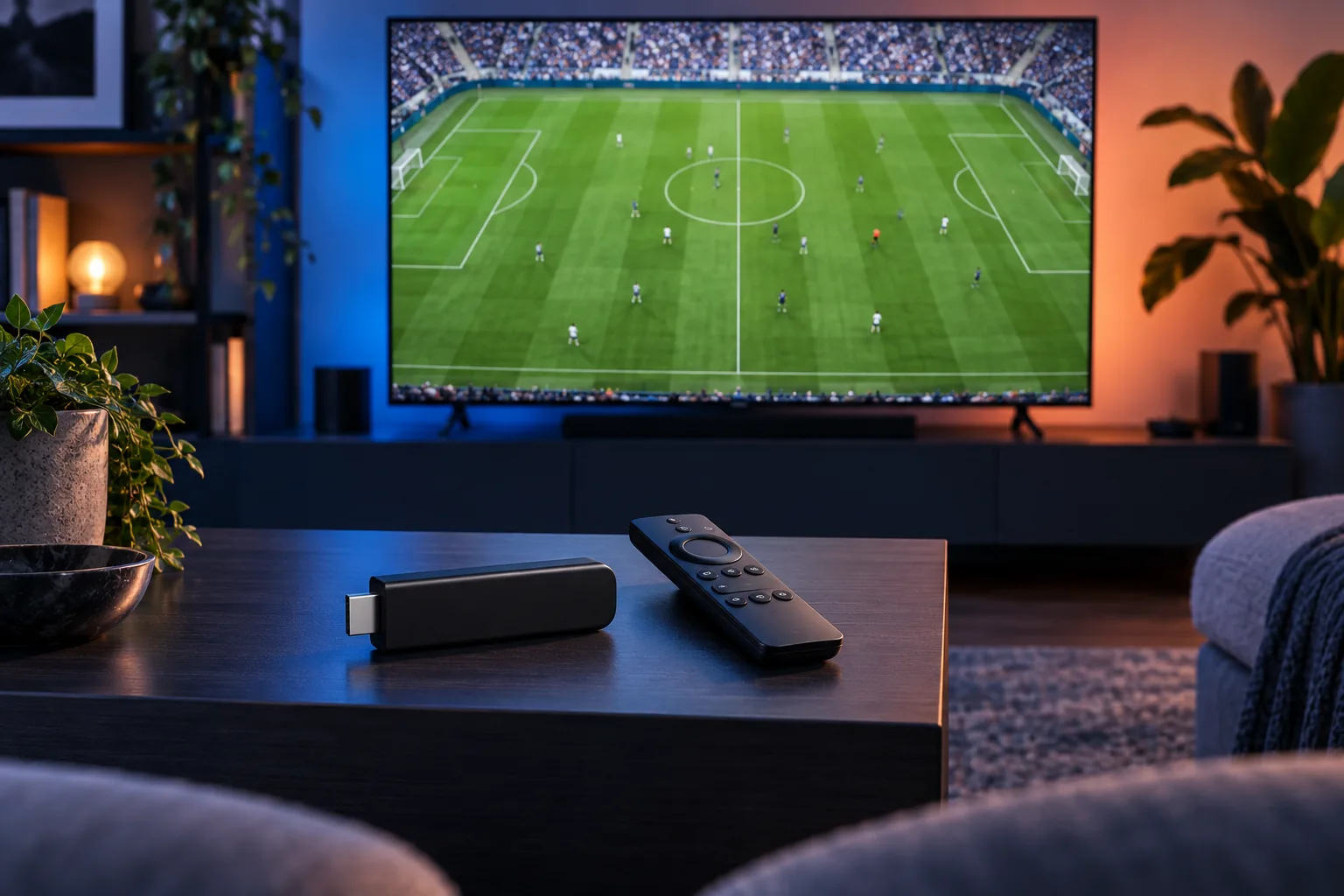
What matters here
A built-in app and an HDMI streaming box may use different picture settings. Test the actual viewing source after a change. Black bars can be correct when the programme’s shape differs from the screen; removing them can crop useful picture information.
Work through these checks
- Identify whether playback comes from a built-in app or HDMI device.
- Check the player’s fit or zoom selection.
- Review the TV’s supported aspect-ratio option.
- Compare a familiar scene and the lowest caption line.
Avoid this mistake
Do not assume a setting changed on one HDMI input applies to every built-in app.
How to judge the result
The correct result preserves natural proportions and keeps relevant text visible, even when some unused screen space remains.
Sources & further reading
www.lg.com · us/support/help-library/lg-tv-how-to-adjust-the-aspect-ratio--20153208850219
References describe the device or technology. They do not establish Hot IPTV content availability. This guide is based on documentation; it is not a hands-on service test.
Keep reading
Published 29 October 2026 · Hot IPTV editorial team · How we write and update guides