Check Fire TV storage before resetting a player
When Fire TV reports low storage, inspect installed apps and their storage use before deleting anything. Remove unused apps first. If a particular player uses.
Read more →
JOURNAL TOPIC
Choose the guide that matches your question. Each article gives a direct explanation and practical next steps.
GUIDES IN THIS TOPIC
When Fire TV reports low storage, inspect installed apps and their storage use before deleting anything. Remove unused apps first. If a particular player uses.
Read more →
Choose between Fire TV and a television app by testing the exact player, remote navigation and playback features you need. A separate stick can offer a different.
Read more →
If video plays but sound is missing, first compare television speakers with any soundbar or receiver. Then inspect the selected audio track and the Fire TV audio.
Read more →Judge Wi-Fi at the Fire TV location, not beside the router. A stick behind a television can sit in a difficult radio position. Compare placement, the active.
Read more →Use the app’s supported store or publisher route to check updates. Note the installed version before changing it, and keep account information available.
Read more →Keep the channels you use most in a short favourites list or a small set of visible groups. Test the route from the player home screen to live playback using.
Read more →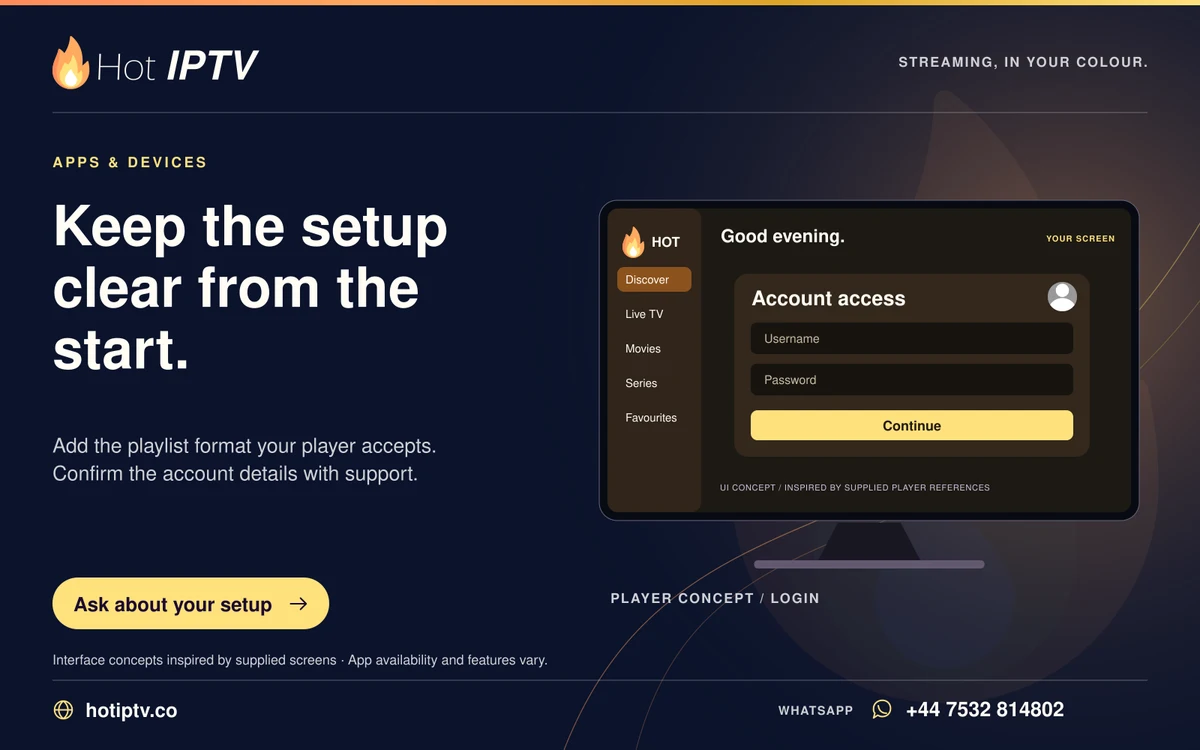
Install a suitable TV player from its verified source and confirm that it accepts your account format. Use the normal remote to test menus before paying any.
Read more →
Confirm that an Ethernet adapter supports your exact Fire TV model before buying or connecting it. After installation, check the active network route and repeat.
Read more →
A rejected login should be checked before reinstalling the player. Confirm the chosen login method, server address and copied credentials. Distinguish a.
Read more →LET’S GET YOU STARTED
Install a suitable player, then WhatsApp us for your 24-hour trial.